Shopify Flow: Automate Your Store Workflows, with Examples
Shopify Flow is free from Basic up. How triggers, conditions and actions work, what each plan allows and six workflows that save time in any store.

Jason Spizert
Updated on November 18, 2026
Published 6 min read
The short answer
Shopify Flow is a free Shopify app that automates processes in your store: a trigger such as a new order starts the workflow, a condition checks it, and an action adds tags, sends emails or Slack messages, or hides products. According to Shopify, Flow is available on Basic, Grow, Advanced and Plus. HTTP requests work from Grow, tasks from custom partner apps only on Plus.
Every store has tasks someone does every day: flagging orders, tagging customers, warning the warehouse. Shopify Flow takes exactly these repetitions off your plate. This guide covers how Flow is built, what each plan allows and six workflows that make sense in almost any store, based on Shopify's information as of November 18, 2026.
What is Shopify Flow?
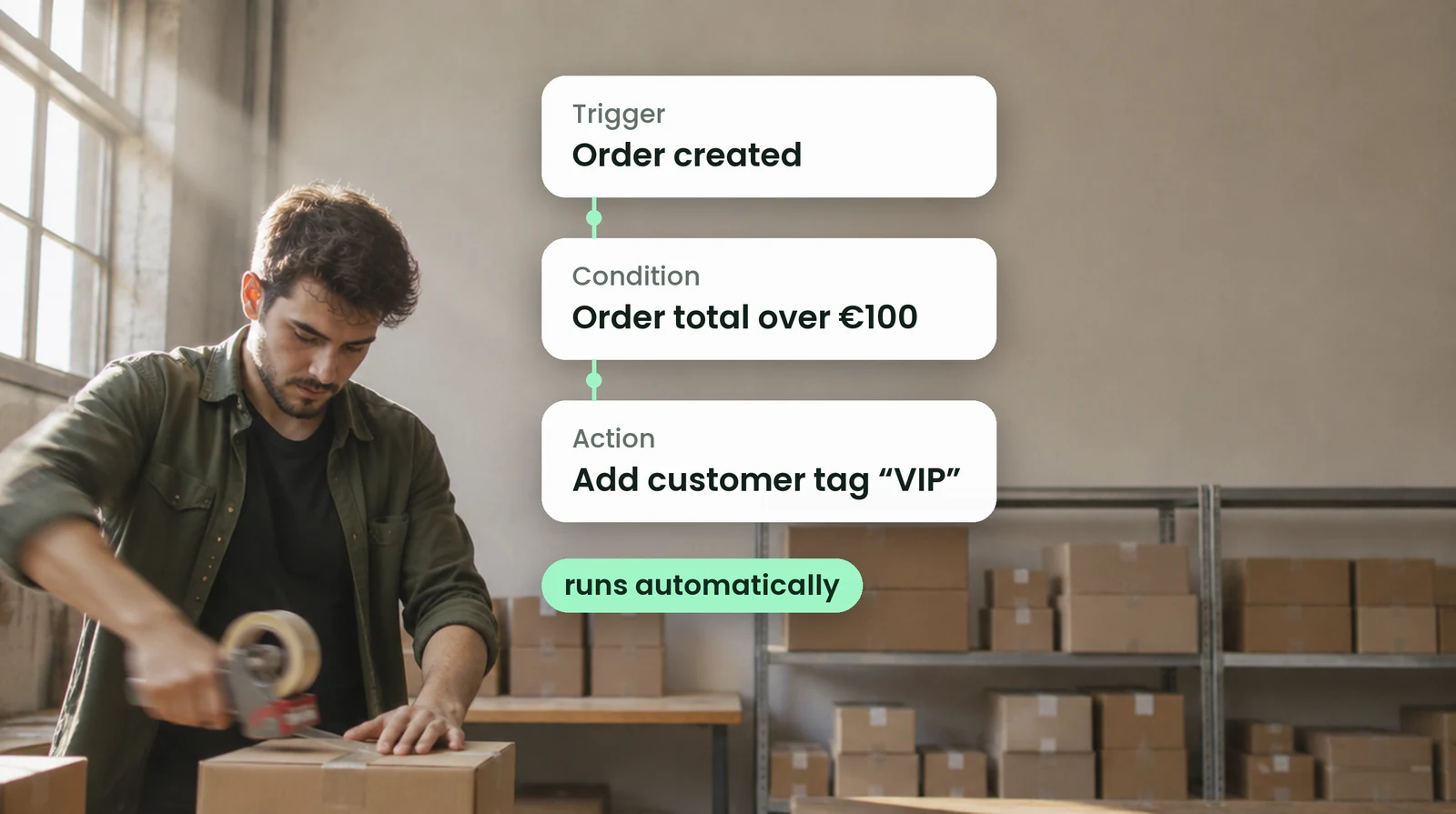
Flow is a Shopify app for automation. Every workflow has three parts:
- Trigger: the event that starts the workflow, for example “Order created” or “Product variant inventory quantity changed”.
- Condition: the check that decides whether it continues, for example whether the order value is above a threshold or a specific discount code was used.
- Action: what happens, for example add a tag, send an internal email or unpublish a product.
For many cases, Flow comes with ready-made templates you only need to adjust. Apps from the App Store can add their own triggers and actions.
Which plans include Flow?
According to Shopify, Flow is a free app on Basic, Grow, Advanced and Plus. Two features depend on your plan, and usage limits also differ by plan.
| Basic | Grow and Advanced | Plus | |
|---|---|---|---|
| Use Flow | yes, free | yes, free | yes, free |
| Send HTTP request | no | yes | yes |
| Tasks from custom partner apps | no | no | yes |
| Usage limits | by plan | by plan | by plan |
Use Flow
Basicyes, free
Grow and Advancedyes, free
Plusyes, free
Send HTTP request
Basicno
Grow and Advancedyes
Plusyes
Tasks from custom partner apps
Basicno
Grow and Advancedno
Plusyes
Usage limits
Basicby plan
Grow and Advancedby plan
Plusby plan
Six workflows from everyday store operations
All six are built on triggers and actions that Shopify lists in Flow. You set values such as thresholds or tags yourself.
- Inventory warns you in time: trigger “Product variant inventory quantity changed”, condition “inventory below your threshold”, action “Send Slack message” or “Send internal email” to purchasing.
- Flag risky orders: trigger “Order risk analyzed”, condition “risk is high”, action “Add order tags”, so nobody ships them without a check.
- Spot your best customers: trigger “Order created”, condition “customer spend above your threshold”, action “Add customer tags”. With the tag, you can show dedicated offers in Klaviyo or in your store.
- Track discount codes: trigger “Order created”, condition “discount code X used”, actions “Add order tags” and “Add row to Google Sheets”. That way you see what a campaign or a creator brought in.
- Notes for fulfillment: trigger “Order created”, condition “order has a note” or “gift wrapping”, action “Send internal email” to the warehouse.
- Unpublish sold-out products: trigger “Product variant inventory quantity changed”, condition “all variants at 0”, action “Unpublish product”. When stock comes back, a second workflow puts it back online.
Key takeaway
Start with the task that comes up most often. A simple workflow that runs every day saves more than a clever one that kicks in once a month.
Flow and other apps
Shopify lists dedicated Flow actions for Slack messages and new rows in Google Sheets. Klaviyo offers actions in Flow, including sending an event to Klaviyo, which you can use to start an email flow there. On top of that, many apps from the App Store bring their own triggers and actions.
For B2B, Shopify lists triggers such as “Company created”, “Company location created” and “Company contact created”. You can use them to tag new business customers automatically or notify your sales team. How a wholesale store with company accounts is set up is covered on our Shopify B2B agency page.
If your Shopify store is on Grow or higher, Flow can also reach systems without a ready-made action using “Send HTTP request”.
When Flow isn't enough
Flow reacts to events and then handles tasks. In three places you need something else:
- Rules in the cart and checkout: custom discounts, shipping or payment rules run on Shopify Functions. What they can do and what works without Plus is covered in Shopify Functions instead of Scripts.
- Syncing with an ERP: products, prices and inventory from your ERP need a real integration, not individual workflows. More on our Shopify ERP integration page.
- Calculations across many orders: reports over weeks or months belong in an analytics tool, not in a workflow.
How to build your first workflow
- For one week, write down which tasks in your store repeat.
- Take the most frequent one and check whether Flow has a template for it.
- Define trigger, condition and action. Keep the condition as simple as possible.
- Test with a real or a test order and check the Flow run history to see whether everything ran.
- Only then move on to the next workflow. Give each one a clear name so your team knows later what it does.
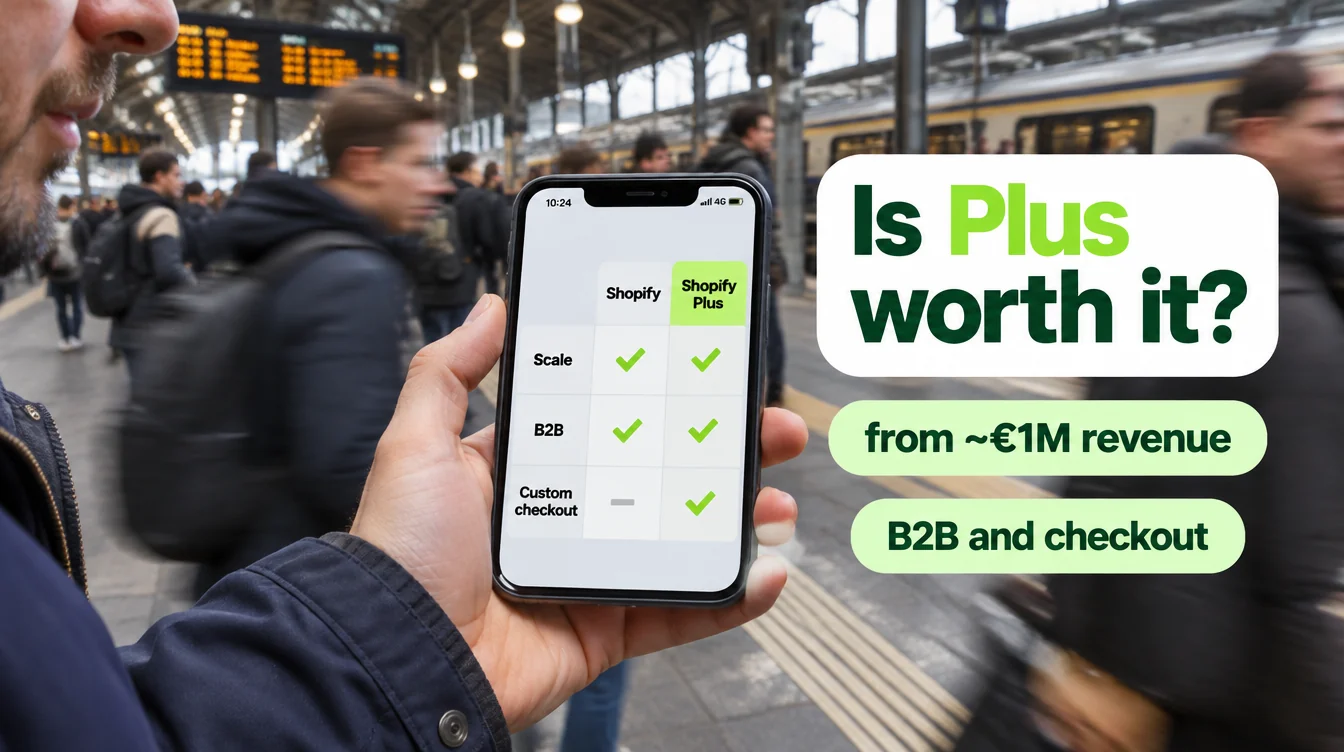
Whether Shopify Plus pays off for your store, beyond Flow, is covered in our Shopify Plus guide.
Frequently asked questions
Nothing. According to Shopify, Flow is a free app on the Basic, Grow, Advanced and Plus plans. Costs only come up when a workflow uses a paid app.
No. Flow works from Basic up. According to Shopify, the “Send HTTP request” action is available from Grow, and tasks from custom partner apps are reserved for Plus. Usage limits also depend on your plan.
The trigger starts the workflow, for example a new order. The condition checks whether it should continue, for example whether the order value is above a threshold. The action then does something, for example add a tag or send an email to your team.
Yes. Shopify lists an action for Slack messages and one for new rows in Google Sheets, and Klaviyo offers actions in Flow, including sending an event to Klaviyo. Many other apps bring their own triggers and actions.
Not as a dedicated trigger. For B2B, Shopify lists triggers such as “Company created”, “Company location created” and “Company contact created”. You can use them, for example, to tag new companies or notify your team. The approval itself happens in the admin or through an app.
If rules need to apply in the cart or checkout, Shopify Functions are the way to go. If data needs to sync with an ERP, you need an integration. Flow is strong for processes after an event, not for calculations across many orders.