How to Create a Shopify Store: Step-by-Step Guide for 2026
Create a Shopify store in eight steps: account, theme, products, taxes, shipping, payments, legal basics and connecting your domain. As of October 2026.

Jason Spizert
Updated on October 26, 2026
Published 9 min read
The short answer
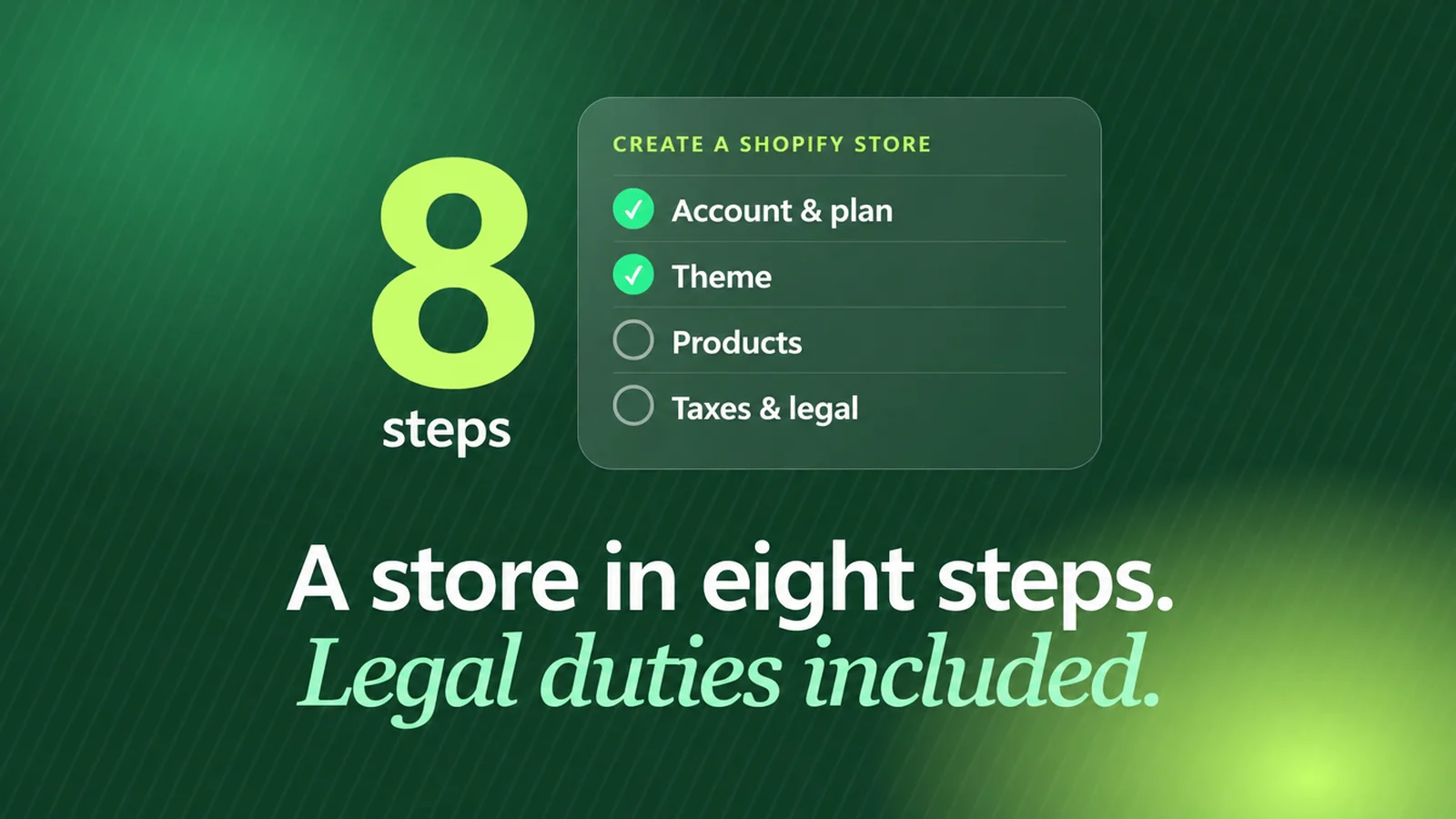
You create a Shopify store in eight steps: create an account, enter your business details, choose a theme, add products, set up taxes and shipping, activate payments, add legal texts, then test and launch. In Germany, the trial is 3 days free, then 3 months at €1 each. Depending on where you sell, extra duties apply that Shopify doesn't handle automatically; in Germany, for example, prices including VAT, unit prices, delivery times, an unambiguous order button, a cookie banner and, since June 2026, a withdrawal button. Some domain endings, such as .de, can't be bought through Shopify; you connect them from another registrar.
Most Shopify guides are either outdated or written for one market only. Then they miss exactly the points your local rules require, or they recommend themes and plans that no longer exist in that form.
This guide reflects the state of October 2026 and follows the click paths from Shopify's own help center. Where something only applies in Germany, it's marked.
How do you create a Shopify store?
In eight steps, from account to launch. The order follows the setup guide Shopify shows in the admin after you sign up.

Important for planning: during the trial, you can set everything up, but you can't sell anything. The store stays in private mode until you choose a paid plan. If the trial ends without a plan, Shopify pauses the store; your data is kept.
Steps 1 and 2: Account and business details
You create the account on shopify.com, without a credit card. According to Shopify's German pricing page, you test for 3 days free and then pay €1 per month for 3 months. After that, your plan applies: Basic, Grow, Advanced or Plus. What the plans cost and when each one pays off is covered in How much does Shopify cost?
In your settings, you enter store name, legal business name, business address and currency. When you sign up, you get an address on myshopify.com. Choose it carefully: according to Shopify, it can only be changed once.
Step 3: Choose and customize a theme
In May 2025, Shopify introduced the Horizon family, ten free themes based on theme blocks. The older Dawn is still supported. In the theme editor, you build pages from sections, meaning layout components, and blocks such as text, image or button. Blocks can be nested up to eight levels deep.
New since October 2026 is Canvas, a design surface where the AI Sidekick rebuilds pages on instruction. Be careful if you sell internationally: according to the Shopify Help Center, Canvas doesn't support translations, markets or app blocks at launch, and themes edited this way no longer receive theme updates. Yet legal-text, cookie and review apps often depend on exactly those app blocks.
Whether a free theme is enough or a custom design pays off is covered in Shopify theme vs. custom design. Which themes are available is shown in Best Shopify themes compared.
Step 4: Add products
Since October 2025, each product can have up to 2,048 variants with up to three options, such as size, color and material. Before that, the limit was 100. Some apps and paid themes can't handle that many variants yet.
For images, Shopify recommends square 2048 × 2048 pixels; JPEG, PNG and WebP up to 20 MB are among the allowed formats. If you sell goods by weight, volume or length, enter the unit price under “Pricing”: total quantity and base unit, and Shopify calculates the price per kilo or liter.
What product images should look like for your store, Google and marketplaces is covered in Product photos for your online store.
Steps 5 and 6: Taxes, shipping and payments
Under “Taxes and duties”, you set whether prices include VAT, as required for consumer prices in Germany. Important: Shopify calculates taxes but doesn't remit them. If you sell more than €10,000 a year to other EU countries, you need the EU One-Stop Shop (OSS) scheme, which you also set up there.
For shipping, you create zones and rates: flat, by weight or by order value, including “free over”. In Germany, you can buy DHL Paket labels directly in the admin, but only for shipping within Germany. Since August 2026, DHL Express has also been available in the admin, domestically and internationally, without your own DHL account.
For Shopify Payments in Germany, you need a euro account with an IBAN, ID, proof of address and proof of business such as your business registration. That gets you cards, Apple Pay, Google Pay and Klarna. Shopify creates a PayPal account automatically when you set up the store; you complete the setup in your payment settings.
Step 7: Selling in Germany: what your store also needs
This is where most guides fall short, because they're written for another market. Shopify has its own help section “Selling in Germany” for this. If you sell in Germany, this is the core of it:
Two points deserve special attention. Under § 312j of the German Civil Code (BGB), the last button at checkout must clearly indicate the obligation to pay, for example with “zahlungspflichtig bestellen” (order with obligation to pay). Check in a test order how it's labeled in your store. And since June 19, 2026, you need a withdrawal button under § 356a BGB. Shopify points to its own returns features for this, but doesn't clearly say they cover all requirements. Many stores therefore use an app.
Shopify itself
According to Shopify, its templates and automatic privacy settings don't replace legal advice. Responsibility stays with the store.
This is not legal advice.
Step 8: Connect your domain and go live
Some domain endings can't be bought through Shopify; .de, for example, isn't on the list of endings it sells. In that case, you buy the domain from a registrar of your choice and add three records there:
Before launch, place at least one test order, via the test payment gateway or Shopify Payments in test mode. Also check the confirmation email, invoice, cancellation and refund. Then switch the store under “Online Store” from “Private” to “Public”. Only then can visitors and Google see your pages. Finally, verify the store in Google Search Console and submit the sitemap Shopify automatically provides at /sitemap.xml.
What can you do yourself, and where does it tip over?
With Shopify, the tech is no longer an obstacle. A store with a ready-made theme is up quickly. Whether it sells is decided elsewhere: by the offer, product pages, trust and the buying journey. According to Baymard, shoppers most often abandon because shipping, taxes or fees only show up late, in 40% of cases (US study).
Building it yourself fits if …
- you first want to test whether your product sells
- a free theme carries your brand
- you have time for copy, photos and legal texts
- you have few products with simple variants
Help is more worthwhile if …
- your brand should look like a market leader
- you're moving from another platform and want to keep your rankings
- many variants, markets or wholesale pricing come into play
- ads are already running and every visitor counts
A store is built quickly. A store that sells needs a clear answer to why someone buys from you of all places.
If visitors come but don't buy, start with Shopify traffic but no sales. If you want the store built for you, Shopify store development shows what's included at which scope. If you're moving from another platform, our Shopify migration page helps.
Frequently asked questions
With an account on shopify.com. In Germany, that means 3 days free, then 3 months at €1 each. After that, a setup guide in the admin walks you through business details, theme, products, shipping, taxes and payments. You can only sell once you've chosen a paid plan and removed the password.
On Shopify's German pricing page, the plans cost €27 (Basic), €79 (Grow) or €289 (Advanced) per month when paid annually, plus fees per sale, apps and a domain. All the items are in our article on Shopify pricing.
No. Some endings aren't on the list of domains Shopify sells, including .de, .at and .ch. You buy the domain from a registrar of your choice and connect it: A record to 23.227.38.65, www as a CNAME to shops.myshopify.com. Shopify issues the SSL certificate for free.
The tech is in place within a few days with a ready-made theme. Product copy, photos, legal texts and checking local legal requirements take longer. Connecting the domain takes up to 48 hours.
For anyone who wants to sell without managing servers, updates and security themselves. Shopify fits less well if a store is only a small part of a large WordPress website or needs very specific processes that no app covers.
Usually at one of three points: the wrong visitors, an offer that doesn't convince, or friction in the buying journey. According to Baymard, shoppers abandon most often because of unexpected extra costs (40%, US study). How to find the spot is covered in “Shopify traffic but no sales”.
Since October 2025, up to 2,048 variants with up to 3 options; before that it was 100. Some apps and paid themes can't handle more than 100 variants yet, so check that first.